A billion devices. That is how many machines around the world are running Windows 10. Add hundreds of millions more older versions to that list and you have the most ubiquitous software in history.
Microsoft fixes it every few weeks.
These updates do three things. They patch malfunctioning code. They add new features. Most importantly, they stop hackers from exploiting cracks in the system.
So here is the question that keeps IT admins up at night and regular users annoyed on a Tuesday morning: Can you skip them?
The short answer is yes. You should install them all.
The updates that install automatically, oftentimes on Patch Tuesday, are security-related patches and are designed to plug recently discovered security holes. These should be installed if you want to keep your computer safe from intrusion.
Tim Fisher at Lifewire put it plainly. Are the updates necessary for Windows to function? Usually no. Necessary to prevent unauthorized users from exploiting flaws? Usually yes.
Microsoft agrees. The company states that keeping your machine continuously updated is the optimum way to ensure users run the best version of Windows possible. Skip a patch and you risk data loss. You risk information theft. You risk a world of other problems that are hard to fix after the fact.
The Patch Tuesday Routine
Windows checks for updates once a day. Most days, it finds nothing. Then comes the second Tuesday of the month.
Patch Tuesday.
This is when Microsoft rolls out a new cumulative update. It is a bundle of every recent fix. It is substantial. Your computer will restart to complete the process.
Microsoft loves its automatic updates. The ideal scenario is that these patches download and install while you are asleep, or at least not trying to hit a deadline. But you are not powerless.
You can schedule these updates for a time that works for you.
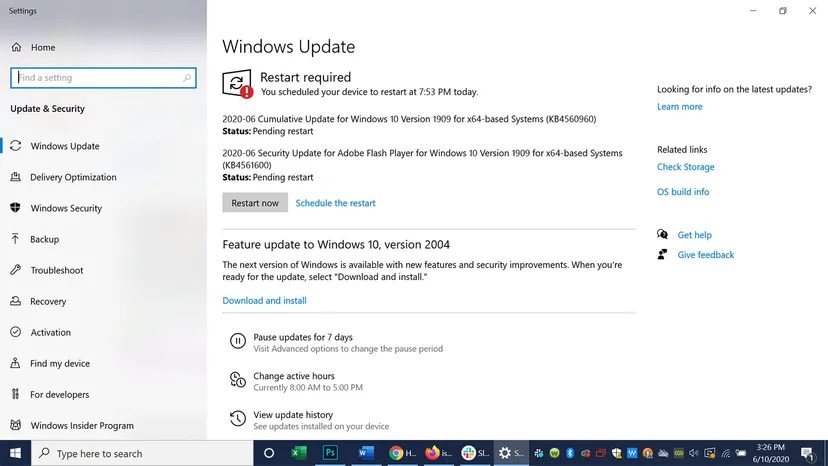
Go to Settings. Click Update & Security. You will immediately see if you are due for updates. You can view your update history there too.
Click Advanced Options.
This is where you control when updates are downloaded and installed.
The Risk of Waiting
Why do experts insist on this? Because the alternative is leaving a door open.
Malicious hackers do not wait for you to be ready. They find the flaws in Microsoft software and exploit them. They access your computer. They steal your info.
Tim Fisher noted that security-related patches are designed to plug these holes. If you want to keep your computer safe from intrusion, you install them.
There is no perfect balance between convenience and security. If you choose convenience, you are gambling with your data.
The settings are there. The option to delay is real. But the recommendation remains the same. Install the updates. Protect the machine.
It is that simple. Or is it?
Update fatigue is real. You stare at that notification. Your machine runs fine. The download eats bandwidth. The install takes forever. Then the restart happens. And everything breaks.
It’s not paranoia. It’s history.
Take KB4541335. Released in April 2020. It turned perfectly good computers into brick. Users were stuck until they figured out how to roll back the glitchy code. Before that, a February 2020 patch caused chaos across countless systems. Microsoft had to yank it. Permanently. From their servers.
Why do you risk it?
Because some updates are non-negotiable.
Microsoft tags these critical updates with urgency for a reason. If you see that label, don’t wait. Don’t schedule it for later. Install it now.
In March 2020, they issued a stark warning. An emergency patch was required. Why? Extreme security vulnerabilities. Without it, a hacker could take full control of your PC. That’s not a hypothetical risk. That’s a direct line to your data.
For security patches, hesitation is dangerous.
For feature updates? Not so much.
Here is how you handle Windows updates strategically.
How to Check for Windows Updates Safely
Most users just click “Install Now” and hope for the best. Don’t.
First, create a recovery drive. This is your backup. If an update goes sideways, this drive lets you boot out of the mess. It’s insurance.
Second, check manually before auto-installing. Go to Start. Select Settings. Click Update & Security. Hit Windows Update. Then select Check for updates.
This gives you a moment to breathe. You can see what’s coming. You can read the release notes. You can wait a few days if the early reviews are bad.
The “Last Version” Lie
When Windows 10 launched in 2015, Microsoft claimed it was the final version. The “last” Windows. They said there would be no Windows 11. No Windows 12. Just endless updates to the same core.
They were wrong.
But the strategy remains. Every six months, Microsoft pushes a “feature update.” New capabilities. Tweaks. Fixes. They promise improvement. Often, they bring regression.
The goal isn’t to avoid updates forever. The goal is to avoid breaking updates.
Critical security patches? Install immediately. They keep hackers out.
Feature updates? Be deliberate. Create that recovery drive. Wait a week after release. See if other people’s PCs survive.
If a future update procedure goes awry, you need a way out. A recovery drive is that way.
Without it, you’re gambling with your workflow.
With it, you have a safety net.
The tech world moves fast. Windows updates are a constant churn. Security risks evolve. Features change.
But your data doesn’t have to disappear because of a bad patch.
Check the status. Create the backup. Install the critical stuff. Skip the risky stuff until it stabilizes.
It’s a balance. Not a perfect one. But it keeps you in control.
Until the next update drops.