


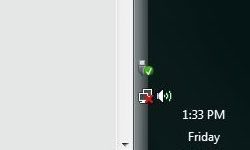
There is nothing more annoying than the “address not found” screen. You blink at the red X in the indicator area. You’re staring at a spinning wheel. The browser is just there. This all points to the harsh reality that the connection has failed.
Fixing it is not an easy task. The communication chain is very long. A broken link in any chain invalidates the signal. We’ve given you 5 steps to restore your broadband. These fixes apply to most types of Internet service. You will be back to scrolling after a few minutes.
5: Check the physical cable.
It feels very basic. This is also the most often overlooked step. Before you panic, look at the wires. This applies to all types of connections. Check even if you’re sure nothing has changed.
Start at the entry point of your home. The signal is fed here. It’s probably a coaxial cable. Maybe it’s the phone jack. Or maybe a satellite dish feed. Make sure the main cable is connected properly. Check external wiring for damage. Weather eats cables. Birds chew them. Squirrels are not kind to Ethernet.
If you find a damaged wire, do not touch it.
Safety first. If there are any exposed wires nearby, back up. Call the service provider immediately. Do not attempt to connect the wires yourself.
Once the exterior is clear, follow the interior path. Follow the cables to the router. Check all ports. If you have a complex setup with multiple devices, it can be messy and confusing. Make sure the uplink cable is connected to the correct WAN port. Confusion here kills traffic.
If the physical connection seems stable, move to the hardware state.
4: Restart the modem
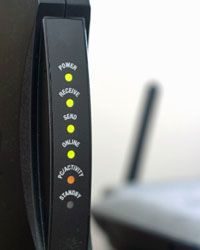

Power cycling may sound dramatic, but digitally it’s the same as unplugging and waiting. Works with cable, DSL, satellite, etc. Locate the modem’s power cord. Remove the plug. If your modem has a switch, use it. Otherwise, pull the power cord tightly. Wait 30 seconds. Turn it on again. Watch the lights. Once the startup cycle is complete and you’re back online, you’re done.
If you’re still staring at the spinning wheel, simplicity isn’t enough. You need to restart it step by step.
Turn off your computer. Remove everything else. modem. the router. hub. access point. All this.
Then reverse the power to signal flow. Start with the modem. Wait until it settles down. Watch these LEDs until they stop flashing like crazy. Then power to the router or hub. Wait a minute. Finally, turn on your computer. This order prevents handshake conflicts. This is not magic. This just gives the hardware time to breathe.
Still dead? If you are on a satellite, the situation changes completely.
Handling of satellite internet outages
Satellite internet is a beast in itself. It is based on a two-way antenna directed at a specific angle in the sky. If something blocks your view, you go offline.
Check the dishes. Look for overgrown branches. Ice. snow. Leaves. Debris acts like a shield. If the dish are on the roof, that’s a problem. A ladder may be needed. You may need help. If the weather is bad, don’t risk falling.
But here’s the weird part. Weather hundreds of miles away can disrupt your connection.
If you are in the northern hemisphere, the antenna points south towards the equator. The further north you go, the flatter the angle becomes. The signal must penetrate more through the atmosphere. Storms from the south several miles away are still causing disruption. This is not your local weather. This is Guatemala weather.
If the sky is clear and the discs are clean, misalignment can occur. Satellite dishes require precision. This does not apply to TV antennas. they are very tolerant. Not so with Internet dishes. A few degrees off and the signal disappears. Don’t try to adjust it yourself unless you want to spend hours guessing. Call your ISP. They have the tools for proper recalibration.
One more thing. sun.
Sunspots are huge flares. They send energy to the ground. This energy can interfere with satellite communications. You can’t control the sun. All you can do is wait.
Fix a wireless router outage
If you’re using Wi-Fi, your wireless connection may be to blame. Laptops love to drift. A wired connection may be needed temporarily. Connect the Ethernet cables. Stabilize. Next fix the wireless.
Keep your router’s user manual handy. Or search the PDF online. You need it.
There are two main problems with wireless network settings. Configuration. And security.
You can access your router’s settings by entering its IP address in a web browser. The instructions tell you the address. Usually something like 192.168.1.1. After entering, check the configuration. The settings vary greatly depending on the Internet service provider and network type. You may need to contact your ISP to get the correct parameters.
Security is another matter. If WPA2 or WPA3 encryption is enabled, you cannot connect without it. Check your security settings. It’s the same process. Enter the IP address. Log in. If you have forgotten your password, Reset the password Or if you suspect someone else is stealing your bandwidth.
It’s tedious. However, this is often the only way to regain control.
Other cabling and configuration issues
If repairing the wireless network does not help, check the cable. Are they frayed? Loose? Sitting in the wrong port? Sometimes the simplest physical connection can fail. Check your Ethernet cables. Change it. Try a different port on your router.
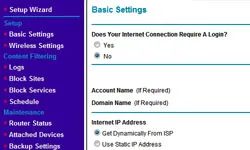
Sometimes configuration problems are hidden. DHCP settings are probably out. Your DNS server settings may be incorrect. They require patience. And often, a call Usually, you need to call your ISP’s support number.
You may need to reset your router to factory settings. This will remove everything. Your custom Wi-Fi name. Your passwords. Your port forwards. Use this as a last resort. Doing this requires rebuilding the network from scratch.
This is very frustrating. But it’s better than staring at a empty screen.

Cat5 or Cat5e Ethernet cables are the backbone of most home networks, but using the wrong type can quietly slow down your connection. If you experience packet loss or slow speeds, it may be caused by physical layer confusion between cable types.
Straight-Through vs. Crossover Cables Explained
The most common mistake is to confuse straight cables with crossover cables. This is not just pedantic talk. This affects how data signals are sent between devices.
If you want to connect one computer directly to another, you need a crossover cable. These cables internally cross over the transmit and receive wire pairs, allowing the two devices to communicate directly.
However, if you want to connect your computer to a switch, hub or router, you must use a straight cable. In this case, the cable itself must be standard, because the network equipment takes care of the signal crossing.
Checking the cable type
Depending on the manufacturer, the jacket may have the word “Crossover” stamped on it. If the cable is smooth and unmarked, it requires technical knowledge to identify it. The connector must be stripped and the wire pairs inspected according to standard T568A or T568B. Most people don’t have the tools or the patience to do this.
The pragmatic approach? Replace the cable. If you are using a different Ethernet cable for the connection, the cable may be damaged or incompatible. It’s not elegant, but it works.
Network diagnostics of the operating system
If there is no damage to the hardware, the problem may be in the network stack of the operating system. Start by checking the system tray. A red X or yellow triangle network icon indicates a handshake error or driver issue.
Modern operating systems have built-in diagnostic tools. For example, Windows can run the Network Diagnostics Wizard to check for IP conflicts, DNS issues, and adapter issues. Mac users have the Network Utility app. These tools do more than guess. They ping the gateway and check routing tables to pinpoint where the connection breaks.
“If the connection fails without an error message, some operating systems may run self-tests to determine if there are other problems.”
When to call your ISP
If local hardware and operating system diagnostics show a green light, the problem is almost certainly upstream. There is a problem with your Internet Service Provider (ISP).
Before calling, check for regional outages. ISPs experience service outages during storms, construction accidents, or software updates. If no widespread failure is reported, contact technical support.
They’ll probably walk you through the same basic steps you’ve already done, like rebooting your modem, checking cables, and checking your IP settings. But it has the added advantage of being able to run a line test from their end. They can look at signal-to-noise ratios, check line attenuation, and in some cases even reset side ports without you needing to cycle power.
It’s a frustrating cycle. Check the cables. Restart your computer. You call support. You will be prompted to restart the router. But this is the only way to isolate the variable.
What next?
Understanding the connection failure is half the battle. To fix this, you need to know which part of the chain is broken.
A detailed guide to choosing the right hardware for your broadband type, speed and bandwidth


