


The internet runs on code. It’s a wild, chaotic place held together by standards we barely notice. At the center of it all is DNS.
People often say “Domain Name Server.” That’s wrong. It stands for Domain Name System. It is a protocol within the TCP/IP suite. Its job is simple but massive. It converts human-readable names like howstuffworks.com into Internet Protocol (IP) addresses. Computers don’t read words. They read numbers. 70.42.251.42 is how a machine finds its friend on the network.
Think of DNS as the phone book for the internet. Without it, you’d need to memorize strings of numbers to visit any site. You’d be navigating virtual plains and dense data cities by rote. Hundreds of millions of domains exist now. Good luck memorizing them.
Without DNS servers, the web shuts down. But how does your device know which server to ask? When you connect to Wi-Fi or your ISP, your router or modem hands you configuration data. This includes the DNS servers your device should use for translation.
We’ve covered the basics. Now we get into the mechanics. Specifically, how IP addresses are structured and why that matters for name resolution.
Understanding IP address structures and resolution
A DNS server translates a domain name into an IP address. Sounds easy. It isn’t.
- Billions of IP addresses are in use.
- Most machines have human-readable names.
- DNS servers process billions of queries simultaneously.
- Millions of domains change every day.
To handle this load, DNS relies on strict efficiency. The Internet Assigned Numbers Authority (IANA) manages the standards. Every machine needs a unique address in either IPv4 or IPv6.
Here is how to spot them:
- IPv4 : Four numbers separated by dots. Example:
70.74.251.42. - IPv6 : Eight hexadecimal groups separated by colons. Example:
2001:0cb8:85a3:0000:0000:8a2e:0370:7334.
IPv6 is newer. We’ll stick to the common IPv4 for now.
Each number in an IPv4 address is an octet. It represents an 8-bit binary number. Take the number 42. In binary, that’s 00101010. Each digit corresponds to a power of two. Add up the values for the bits that are on. 2 + 8 + 32 = 42.
There are only 256 possibilities for each octet. Zero through 255.
Some addresses are reserved. IANA designates them for specific jobs. 127.0.0.1 is the loopback address. It identifies the computer you are using. Talking to 127.0.0.1 is just talking to yourself.
Web servers need consistency. They use static IP addresses. The same address is always assigned to that system’s network interface. To ensure this, IP associates the address with the Media Access Control (MAC) address. The MAC address is burned into the hardware by the manufacturer. It’s unique. Every wired or wireless interface has one.
Now, let’s look at the other side of the equation. Domain names. But first, where is your own IP address hiding?
How to find your IP address on any device
Your address changes periodically unless you set a static IP. That’s rare for home users. Here is how to find it right now.
- Windows : Open Command Prompt. Type
ipconfig. Hit enter. Look for the IPv4 Address. - Mac : Go to System Preferences. Click Network. Select your active connection (green dot). Click Advanced. Go to the TCP/IP tab.
- Linux or UNIX : Open a terminal like XTERM or iTerm. Type
ifconfig. Look forinet addr. - Smartphones : Check your network settings in the OS. It varies by phone and version.
If you are on a home network, you’ll likely see 192.168.x.x, 172.16.x.x, or 10.x.x.x. The x is a number between 0 and 255. These are reserved private addresses. Your router uses them to connect you to the wider internet.
That’s the local side. The next step is understanding the domain names themselves.


How Domain Names Actually Work
Memorizing IP addresses is a losing battle. Your brain isn’t wired to hold onto random strings of digits, but it loves words. That’s the whole point of domain names. You already have hundreds of them cached in your head.
- google.com — the giant everyone uses
- mit.edu — restricted to education
- bbc.co.uk — a nested country code structure
You see the dots. You know the pattern. The last chunk of that address is the top-level domain (TLD). IANA manages these in the Root Zone Database. There are over 1,000 of them now. Most are wide open. Some are locked down.
- COM, NET, ORG — anyone can grab these. Originally for commercial, network, and non-profit use. Now? Just labels.
- EDU, MIL, GOV — restricted. You can’t just buy an .edu address unless you’re actually a school.
- .UK, .US, .RU — country codes. Managed by local authorities.
Adding words before the TLD creates hierarchy. Each dot separates a level. “howstuffworks” sits as a second-level domain under .com. That structure points to specific servers.
Take bbc.co.uk. It’s not just a domain. It’s a sub-domain under .co, which itself sits under .uk. It’s a nested filing system for the internet.
The word on the far left? That’s the host name. Usually www or mail. It tells the system exactly which machine you want. A single domain can host millions of unique hostnames. As long as they don’t clash, you’re good.
Then there’s the prefix. HTTP. Hypertext Transfer Protocol. It’s the handshake between your browser and the server. But you’ll rarely see it anymore. You’ll see HTTPS. The ‘S’ means secure. Encryption is on. Your credit card number stays private. If you’re not using HTTPS, you’re shouting your data across an open channel.
When you register a domain, you have to point it somewhere. Specifically, you need name servers. These DNS servers hold the authority for your domain. They know where www.yoursite.com lives. Usually, your hosting provider handles this. They have the DNS infrastructure ready to go.
How DNS Servers Route Traffic
Here is where the magic happens. Or the headache, if it breaks.
DNS isn’t one big computer. It’s a distributed system. A hierarchy of servers working together. If one fails, the others pick up the slack. It’s designed to be resilient. But it’s also complex.
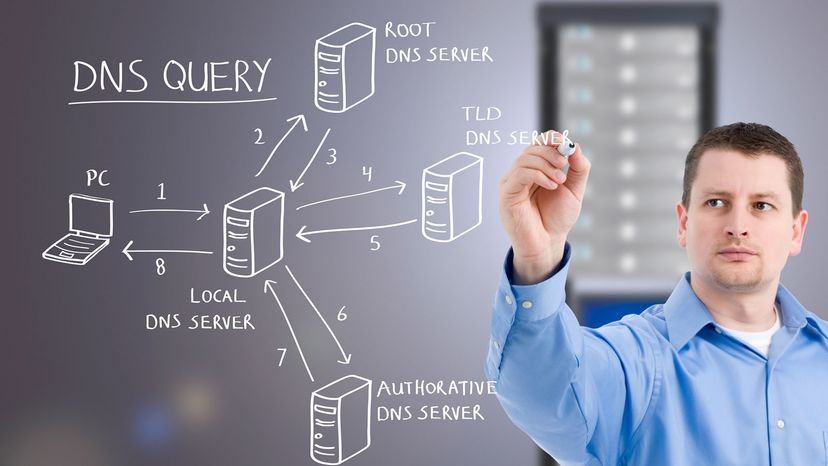
When you type a URL, your computer doesn’t just guess the IP address. It asks.
First, it checks its own cache. Did it visit that site yesterday? Great. It already knows the IP. No need to bother anyone else. Speed matters. Latency kills user experience.
If the cache is empty, it asks the resolver. This is usually provided by your ISP or a public service like Cloudflare or Google. The resolver does the heavy lifting. It doesn’t have the answer yet, but it knows where to look.
It starts at the top. The root servers. There are 13 logical clusters of them, spread across the globe. They don’t know your site’s IP. They know who manages .com. They point the resolver to the .com TLD servers.
The TLD servers know who owns your specific domain. They point the resolver to your authoritative name servers. These are the ones you configured when you registered the domain. They hold the actual record. The A record. The IP address.
The resolver grabs that IP. It sends it back to your computer. Your browser connects. The page loads.
All of this happens in milliseconds. You don’t see the handshakes. You don’t see the queries hopping between root, TLD, and authoritative servers. You just see a page.
But if any step fails? You get an error. “DNS_PROBE_FINISHED_NO_INTERNET”. Frustrating. Because the problem isn’t your connection. It’s the address book.
This distributed nature is what keeps the internet from collapsing. No single point of failure. But it also means misconfiguration is easy. One typo in your DNS settings, and your site vanishes. Not offline. Just unfindable.
The system relies on accuracy. And redundancy. If your authoritative server goes down, but you have secondary servers set up, traffic keeps flowing. If you don’t? Silence.
Understanding this flow helps when things break. It’s not magic. It’s a lookup table. A really big, really distributed lookup table.
What a DNS server actually does on your network
The scale is staggering. DNS servers handle more queries than any other database on the planet. They process billions of lookups while simultaneously absorbing updates from millions of people every single day. Yet, despite being scattered across millions of machines and managed by countless distinct teams, the system acts like one unified brain.
It’s a miracle of distributed engineering.
Most folks treat DNS like a black box. You hand the keys to IT and hope for the best. But you don’t need to be a network engineer to manage it effectively. You just need to understand the job description.
Not every DNS server does the same thing. In fact, there are two primary roles. Knowing which one applies to your setup changes how you troubleshoot and configure things.
The Caching Resolver
This server lives on your local network. Its main job isn’t to know everything. It’s to remember what it looks up frequently. It keeps a small, local database of the domain names and IP addresses your network uses most often.
For anything else? It delegates. It asks other DNS servers on the internet for the answer. This speeds up browsing for everyone on that network. You’re not querying a root server in another continent for every single tab you open. You’re hitting a local cache.
The Authoritative Name Server
This server holds the master record. It pairs IP addresses with every host and sub-domain it has authority over.
There’s no delegation here for its own zones. If you own the domain, this server is the source of truth. It tells the rest of the internet exactly where your website, mail server, or API endpoint lives.
One acts as a shortcut. The other acts as the source.
Confusing the two is where most headaches start. You can’t cache records you don’t have authority for, and you can’t be authoritative for a domain you don’t control.
Why does this distinction matter? Because security and performance tweaks depend entirely on which role your server plays. A resolver needs robust caching policies. An authoritative server needs strict zone file management.
So, which one are you running? Or are you running both? It’s common to see a single machine handling both tasks in smaller setups. That’s fine. Just remember they are logically separate functions.
Understanding this split makes the rest of DNS management feel less like magic and more like logic.

How your ISP handles DNS lookups
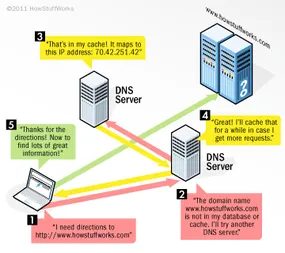
Your internet service provider runs the first line of defense. Or offense. Depending on how you view their throttling habits. When you connect, DHCP hands you their DNS server address automatically. You don’t ask for it. It just happens.
The ISP server works like a lazy librarian.
- It checks its own shelves. If it has the IP address for that domain, it hands it to you. Done.
- If the shelf is empty, it calls another server. It might call three or four in a row.
- It remembers the answer. Caching keeps future requests fast.
- If it can’t find it after digging around, it throws an error. “Domain not found.”
Simple enough. But that’s just the requester side.
Who actually owns the domain data
The second group of servers matters more if you publish anything. These are the ones tied to your web host or email provider. You don’t need to be a server admin to use them. Hosting panels make it click-and-done.
The specific server that holds the truth for your domain is called the start of authority (SOA). It’s the boss. When the SOA updates a record, that change ripples out. It propagates to other DNS servers, which pass it to others, spreading across the internet like a rumor.
The SOA is the single source of truth. Everything else is just a copy.
The root servers and the hierarchy
At the top sits the root name servers. They handle the top-level domains like .com or .org. There are hundreds of them. You rarely talk to them directly. Your ISP usually stops at the TLD level.
But if the chain breaks? If the ISP gives up? The system can fall back to the root. It’s a last resort. A safety net. It helps track down the correct SOA when the path gets lost.
Configuring your domain authority
Now you see the web. How it links together. Why it’s fast. Why it sometimes fails.
The next step is setting yourself up as the authority. You’re not just reading the map anymore. You’re drawing it.

Configuring Your Domain Records
You found a name. It’s available. You registered it. Now what?
You need to tell the internet where that name actually lives. If your registrar is different from your hosting provider, you have to bridge the gap. Point the domain to the correct IP address or host name. This happens through DNS records.
Think of DNS records as instructions. Each one does something specific. They live in a zone file on the DNS server. If you’re running your own server, you’re likely editing that file manually in a text editor. Most registrars these days give you a web interface. It’s easier. You just click buttons instead of typing code.
Here are the record types you’ll actually use.
Host (A) Records
This is the bare minimum. An A record maps a host name to an IP address. No A record means no website. It’s the essential link between yourdomain.com and the server number 192.0.2.1.
Canonical Name (CNAME) Records
An alias. A nickname. A CNAME points one name to another name. If you type the alias, it automatically redirects to the server defined in the A record. Want www to point to your main domain? Use a CNAME.
Mail Exchanger (MX) Records
This handles email. It tells the world which server accepts mail for your domain. You don’t have to host your own mail server. Most people use Google or Microsoft. You create an MX record that points to ghs.google.com or similar. Your domain keeps its identity, but Gmail does the heavy lifting.
Name Server (NS) Records
These declare authority. NS records contain the name servers responsible for your zone. When other DNS servers look up your domain, they check these NS records first. They tell the global network who has the final say on your domain’s data.
Start of Authority (SOA)
The master record. It sits at the top of every zone file. It lists the primary name server and other administrative details. If you’re using a registrar’s DNS, you won’t touch this. If you’re self-hosting, you need to understand it.
The SOA record is the single source of truth for your domain’s DNS zone.
Here is what a raw zone file looks like for people editing text directly. The middle column shows the record type. The @ symbol means “this applies to the root domain unless specified otherwise.”
Most users only care about MX and CNAME records. Use MX to point email to Google Workspace. Use CNAME to park subdomains. Maybe you have a game server on a separate IP. Point games.example.com to it with a CNAME. Simple.
How DNS Security Is Changing
DNS isn’t static. It moves.
In late 2018, ICANN rolled out new security features. They updated the cryptographic keys for DNSSEC. Specifically, the root zone key signing key (KSK). Techies know this as a major event.
Why? The internet is bloating. The Internet of Things adds millions of new devices every day. More devices mean more attack surfaces. Hackers love DNS. They hijack it to steal data or crash services.
DNS poisoning and denial-of-service attacks are real threats. Defending against them requires staying current. If you manage DNS, you can’t ignore these updates. The keys changed for a reason. Security isn’t optional when the phonebook of the internet can be rewritten by a malicious actor.
Common DNS Questions
What is DNS?
It’s the Domain Name System. The phonebook of the internet. It connects human-readable URLs to machine-readable IP addresses.
What does DNS do?
It matches a URL to a specific website’s IP. Without it, you’d have to memorize strings of numbers for every site you visit.
Can I use 8.8.8.8?
Yes. That’s Google’s public DNS. Google maintains it. Anyone can use it. It’s often faster than your ISP’s default.
Is switching DNS safe?
Yes. Switching to OpenDNS or Google DNS is safe. It’s reversible. It won’t break your PC or network. You’re just changing which directory you query for addresses.
What does DNS mean on my phone?
Every internet connection uses DNS. Your phone is no exception. You can set a private DNS on Android. Go to Settings > Network and Internet > Advanced > Private DNS. Enter the hostname of your preferred DNS service. Click save. It routes your queries through that provider instead of your carrier’s default.
More Resources
There is always more to learn. DNS is deeper than just pointing a domain. If you want to dive into the architecture, look for guides on zone file structure or DNSSEC implementation. The basics get your site online. The details keep it secure.

