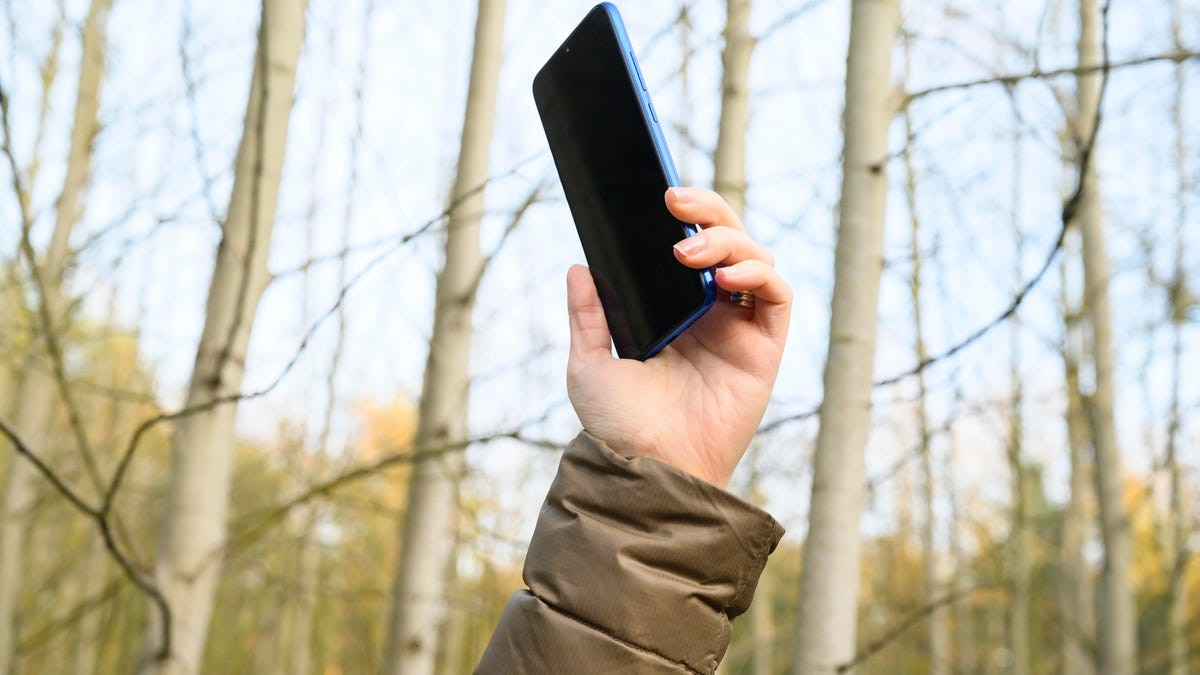
Dropped calls and weak signals are frustrating, but often easily fixed. In 2024, the issue isn’t always about location; it’s frequently how your phone handles connections. Smartphones often stubbornly cling to fading signals instead of switching to stronger, nearby towers – a phenomenon known as “tower clinging.” This means you could have a perfectly good signal within reach, yet your device refuses to use it.
Fortunately, a quick fix exists: toggling Airplane Mode on for 10 seconds then off. This forces a hard reset of your phone’s cellular modem, compelling it to rescan and connect to the strongest available signal. It’s a simple, reliable way to re-establish a connection before your maps fail or calls drop.
Beyond Airplane Mode: Troubleshooting Steps
If the Airplane Mode trick doesn’t work, here’s a breakdown of more solutions. The goal is to eliminate obstructions and ensure your phone isn’t working against itself.
Physical Interference
- Clear Line of Sight: Metal objects and concrete walls weaken signals. Move to a window or outdoors if possible.
- Remove Your Case: Thick cases can block the antenna. Test without it to see if reception improves.
- Battery Life: Searching for a signal drains power. Ensure your phone is adequately charged.
Software Resets
- Restart Your Phone: A basic but effective step. This clears temporary glitches that might be interfering with connections.
- Android: Hold the power button (or power + volume down, depending on the model) and select “Restart.”
- iPhone: Hold the side button (or sleep/wake button on older models) and swipe to power off. Then, press the side button again to turn it back on. A force restart (volume up, volume down, then side button hold) can also work.
- Reset Network Settings: This clears saved Wi-Fi passwords and VPNs, giving you a fresh start.
- Android: Search for “reset network settings” in Settings.
- iPhone: Go to Settings > Transfer or Reset iPhone > Reset > Reset Network Settings.
SIM Card and Carrier Checks
- Inspect Your SIM: If your phone uses a physical SIM card, remove it, check for damage, and reinsert it. For eSIM users, simply restarting the phone is the only option.
- Carrier Updates: iPhones often receive automatic carrier settings updates. Check manually in Settings > General > About. Android support varies; search for “carrier settings” in Settings.
- Contact Your Carrier: If problems persist, the issue might be on their end. Outages or weak coverage in your area are possible.
Last Resort: Signal Boosters
If all else fails, a signal booster can amplify existing cellular signals in your home or office. These devices receive and strengthen weak signals, but they don’t create coverage where none exists.
Ultimately, a combination of these steps can resolve most signal issues. Dropped calls and weak signals are rarely unfixable; the key is systematic troubleshooting.